

Introduction to RSS Feeds
RSS (Really Simple Syndication) feeds have been around for over two decades, and despite newer content formats, they remain one of the simplest ways to pull structured updates from a website without visiting it directly. An RSS feed publishes new content, articles, press releases, product updates in a standardized XML format that other tools can read and parse automatically.
For organizations, this matters more than it might first appear. Teams that need to stay on top of industry news, competitor announcements, regulatory updates, or partner communications often end up checking a dozen different websites manually, every day, just to catch what’s new. That’s repetitive, easy to forget, and doesn’t scale as the number of sources grows.
Connecting RSS feeds SharePoint-side solves this by pulling all of that external content into a single, internal location your team already works in. Instead of RSS readers or browser bookmarks scattered across individual employees’ habits, the information lives in a shared, structured list that everyone can access the same way.
Understanding SharePoint as a Centralized Hub
SharePoint’s core strength has always been consolidation, it’s designed to bring documents, communication, and now external data into one collaborative environment. As part of broader SharePoint content management, its list-based architecture is a natural fit for storing RSS data: each feed item becomes a row, with fields for title, link, date, and description, just like any other structured dataset.
This matters because SharePoint isn’t just a file repository anymore for many organizations it’s the default landing page, the intranet, the place people check first. Feeding external RSS content into that same space means information doesn’t get siloed in a separate app that people forget to open. It shows up where attention is already directed.
There’s also a practical governance benefit here. Because SharePoint lists inherit the same permission structure as the rest of your site, you can control exactly who sees which feeds, something that’s much harder to manage with individual RSS reader apps or personal subscriptions.
Why Automate RSS Feeds in SharePoint
Manually copying content from an RSS feed into SharePoint works, technically, but it doesn’t hold up over time. Someone has to remember to check the source, copy the right fields, paste them correctly, and repeat that on a schedule. That’s a lot of room for things to slip.
Automating the process removes that dependency on human memory and consistency. The key benefits break down into three areas:
- Time-saving : no one has to manually check sources or copy data; the flow runs on its own schedule.
- Consistency : data refreshes at fixed intervals, so the list never goes stale because someone was on leave or forgot.
- Error reduction : automation eliminates the small mistakes that creep in with manual data entry, like mismatched dates or broken links.
This is where a proper power automate sharepoint workflow earns its place. Rather than relying on a person to be the integration layer between an external feed and an internal list, the workflow becomes the reliable, repeatable connector, running the same way every time, regardless of who’s in the office that day.
Introduction to Power Automate
Power Automate, formerly known as Microsoft Flow, is Microsoft’s cloud-based automation platform. It lets you build workflows that connect different apps and services, including things outside the Microsoft ecosystem without writing custom backend code.
For RSS integration specifically, Power Automate acts as the bridge between an external feed URL and an internal SharePoint list. You define triggers (what starts the flow), actions (what the flow does), and a schedule (how often it runs), and Power Automate handles the execution in the background.
This is worth understanding conceptually before diving into setup: you’re not building a permanent piece of custom software. You’re configuring a flow inside a Microsoft 365 tool you likely already have licensed, which means no separate infrastructure, hosting, or maintenance burden on your IT team.
Prerequisites for RSS Integration with SharePoint
Before building the flow, make sure the following are in place:
- A SharePoint list : this is where feed data will land. You’ll set this up in the next section if it doesn’t already exist.
- Power Automate access : confirm your Microsoft 365 license includes Power Automate, and that you’re logged in with the right account.
- RSS feed URLs : gather the exact links for every source you want to pull in. Test each URL in a browser first to confirm it’s a valid, active feed.
- Appropriate permissions : you’ll need rights to create lists and build flows within your SharePoint environment. If you’re not a site admin, get this sorted before you start, or you’ll hit permission errors partway through.
Getting these four things confirmed upfront avoids the most common cause of a stalled setup: discovering halfway through that you don’t have the access you need.
Step-by-Step Guide to Create a SharePoint List
To store RSS feed items in SharePoint, you first need to create a SharePoint list. Here’s how:
- Create a New List: Go to your SharePoint site, click on Site Contents > New > List.
- Name Your List: Give your list a name relevant to the RSS feeds, such as “RSS Feeds”.
- Add Columns: Customize the list by adding columns to match the data from the RSS feed. Suggested columns include:
- Title (Text): Store the title of the feed item.
- Link (Hyperlink): Store the URL of the article.
- Publication Date (Date and Time): Capture the publication date.
- Description (Multiple lines of text): Store a short summary of the item.
Once the list is created and customized, it’s ready to receive data from the RSS feed via Power Automate.
How to Use Power Automate to Integrate RSS Feeds
With the list ready, it’s time to build the actual flow.
- Open Power Automate and click Create.
- Give the flow a descriptive name, such as “RSS to SharePoint.”
- Select Scheduled Cloud Flow, this lets you define how often the flow runs, rather than triggering it manually or from an event.
- Add an HTTP trigger action and enter your RSS feed URL. This step is what actually fetches the raw feed data.
Next, add a Parse JSON action. This step converts the raw feed response into structured data your flow can work with field by field. If you’ve run into parse json power automate errors before, this is almost always where things go wrong the JSON schema needs to match the actual structure of your specific RSS source, not a generic template. Generate the schema from a real sample of your feed rather than guessing at it.
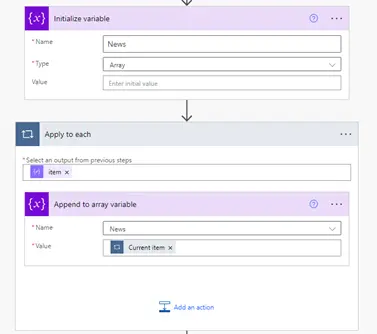
From there, create an array variable to temporarily store each feed item. Add an Apply to Each action using this expression as input:
@{body('Parse_JSON')?['rss']?['channel']?['item']}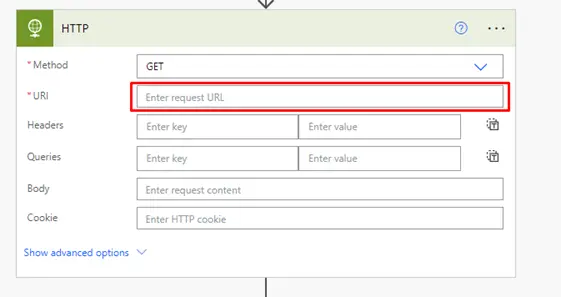
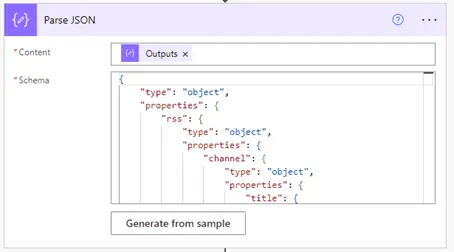
Now Create Array Variable to store each item that we get from RSS. add apply to each action now add @{body(‘Parse_JSON’)?[‘rss’]?[‘channel’]?[‘item’]} in input field then add action append to array and store current item in array.
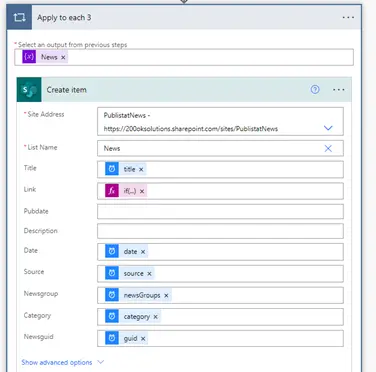
Next add apply to each action and use News Array as input then add action create item also add respective fields value in each column as shown below.
Storing RSS Feed Data in a SharePoint Lis
Once the flow runs successfully, you’ll see feed items populate the list automatically, each landing in its correct column without any manual intervention. This is the payoff of the setup work above: from this point forward, the list stays current on its own, and anyone viewing it sees the latest content without needing to know how it got there.
Automating Updates for RSS Feeds in SharePoint
The real value of a scheduled cloud flow power automate setup is that it runs unattended, indefinitely, without anyone needing to remember to trigger it. You control the interval, hourly, daily, or weekly and the right choice depends entirely on how often your source actually publishes new content. An hourly refresh makes sense for breaking news; a daily or weekly one is usually enough for slower-moving industry updates. Running it more frequently than necessary just adds unnecessary load without adding value.
Common Issues and Troubleshooting Power Automate Flows
Even a well-built flow can run into snags. The most common ones:
- JSON parsing errors : almost always caused by a schema that doesn’t match the actual RSS structure. Regenerate the schema from a fresh, live sample of the feed rather than reusing an old one.
- Flow failures : usually a permissions issue. Check that your account has the right access in both SharePoint and Power Automate before troubleshooting anything else.
- Large feed sizes : very active feeds can hit Power Automate’s processing limits. Apply filters to only pull relevant items, or cap the number processed per run.
Working through these systematically, permissions first, then schema, then volume saves time versus guessing randomly at what broke.
Benefits of RSS Integration in SharePoint
Once running, the setup delivers a few concrete advantages:
- Centralized information : all relevant external updates live in one internal list, not scattered across bookmarks or individual inboxes.
- Improved productivity : teams stop switching between sites to check for updates.
- Better collaboration : everyone works from the same current source, reducing the “did you see this?” back-and-forth that happens when information is fragmented.
Advanced Power Automate Features for RSS Integration
Once the basic flow is stable, a few additions can make it considerably more useful:
- Conditional logic : filter incoming items so only those matching specific keywords or categories get added to the list, cutting down on noise.
- Multiple feeds : combine several RSS sources into a single consolidated list, giving teams one place to check instead of several.
- Custom notifications : trigger an email or Teams alert whenever a new item lands, so people don’t even need to check the list manually.
Conclusion: The Future of Automated Content Management
Setting up power automate rss feed integration turns a repetitive manual task into a reliable background process that just runs. It also reinforces SharePoint’s role as genuine sharepoint content management infrastructure, not just a place to store files, but a live hub that pulls in and organizes information from outside your organization automatically.
Frequently Asked Questions
1. What is Power Automate?
A. Power Automate is a cloud-based service that allows users to create automated workflows between apps and services. It connects various platforms to streamline processes and data exchange.
2. Can I integrate multiple RSS feeds with SharePoint?
A. Yes, you can use Power Automate to pull data from multiple RSS feeds and combine it into a single SharePoint list, making it easier to manage updates from several sources.
3. Is there a limit to the number of items that can be stored in SharePoint?
A. SharePoint lists can handle a large number of items, but it’s essential to monitor performance and consider creating multiple lists if necessary for better management.
4. How often can Power Automate update the RSS feeds?
A. You can set Power Automate to update as frequently as every minute, but it’s recommended to choose a reasonable interval, such as hourly or daily, depending on your needs.
5. Can I notify my team when new RSS feed items are added?
A. Yes, Power Automate allows you to set up notifications via email, Teams, or other platforms when new items are added to the SharePoint list.
6. What happens if the RSS feed format changes?
A. If the structure of the RSS feed changes, you may need to update the JSON parsing schema in Power Automate to accommodate the new data format.
You may also like : SharePoint + Copilot: Building AI Native Workplaces That Scale

What’s the Real ROI of SharePoint Syntex for Your Organisation?
Get a practical ROI calculator + implementation checklist used by enterprises to modernize SharePoint with AI, without trial-and-error.